
Centralize your business management with Odoo CRM
Odoo CRM is Odoo's business management application: a column pipeline to track each opportunity, planned activities to remember everything, and quotes created with one click from the opportunity. The CRM alone is free with the "One Free App" offer; with all applications, it costs €19.90 excluding VAT per user per month for the first year.
Updated on November 10, 2026
To remember
- The pipeline displays your opportunities in columns, one for each sales stage. You move a deal forward by dragging and dropping.
- Leads separate simple contacts from qualified opportunities. Odoo's website forms automatically create leads.
- With the Sales application, the quote comes from the opportunity, is signed online, and becomes an order without re-entering.
- Odoo 20 integrates telephony into the CRM, with call recording and transcription.
- Light User license holders do not have access to the CRM: a full license is required for each salesperson.
What is Odoo CRM?
Odoo CRM is one of the applications of the Odoo ERP. It manages the business relationship, from the first contact to the signature, and shares its database with sales, billing, inventory, and marketing. A won opportunity becomes an order, then a delivery and an invoice, without changing tools. This is what distinguishes it from a standalone CRM like HubSpot or Pipedrive. To discover the ERP as a whole, read What is Odoo?
How much does Odoo CRM cost?
Plan | What is included | Price excluding tax per user per month |
|---|---|---|
A Free App | The CRM alone, unlimited users, on Odoo Online | €0 |
Standard | The CRM and all Odoo applications, on Odoo Online | €19.90 the 1st year, then €24.90 |
Customized | Additionally: Studio, the API, Odoo.sh or your server | €35.90 the 1st year, then €44.90 |
Prices in annual billing, Odoo 20 pricing grid. Adding the Sales application to the free CRM, to create quotes, moves the entire database to the subscription. The details are in How much does an Odoo project cost in 2026?
The Odoo CRM tutorial, step by step
The six steps that follow cover the daily use of a salesperson and a sales manager: create an opportunity, schedule follow-ups, manage leads, move to quotes, organize teams, analyze results.

1. Create an opportunity in Odoo CRM
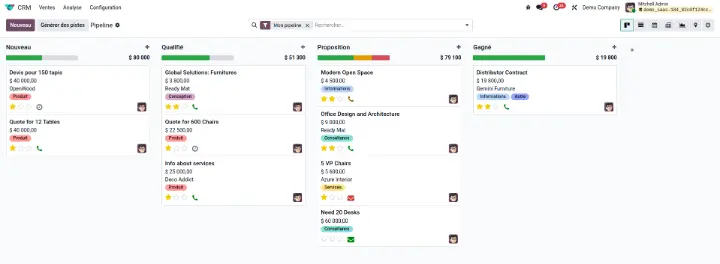
Open your pipeline
From the Odoo dashboard, open the CRM application. You will arrive at your pipeline: your opportunities are organized in columns, one for each sales stage, such as New, Qualified, Proposal, and Won.
Add an opportunity
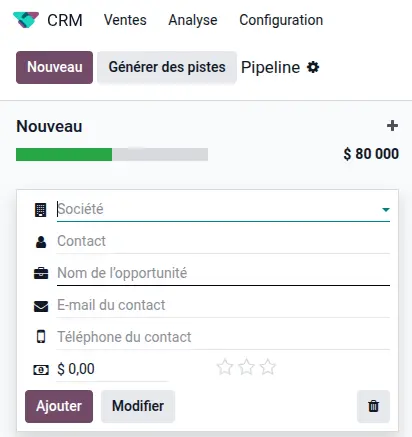
- Cliquez sur “Nouveau”.
- Enter the name of the opportunity, the client, the estimated amount, and the probability of signing.
The stages of the pipeline are changing: adapt them to your selling style, with a demonstration or visit stage, for example.
Advance your opportunities
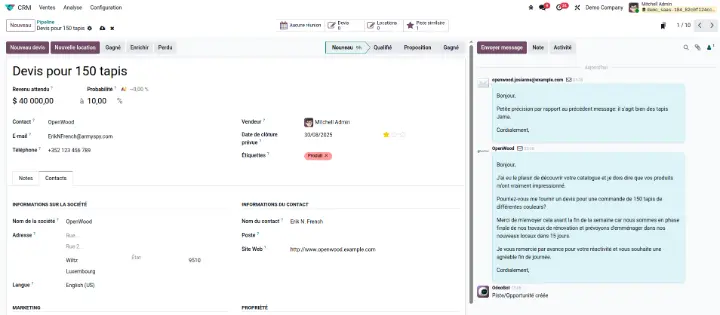
A click on a card opens the opportunity. To move it forward, drag the card from one column to another. Each salesperson can see their ongoing deals at a glance, and the manager can see those of the entire team.
2. Plan and track your business activities
A forgotten follow-up is a lost sale. Odoo's activities set the next action for each opportunity, along with a date and an owner.
Plan an activity
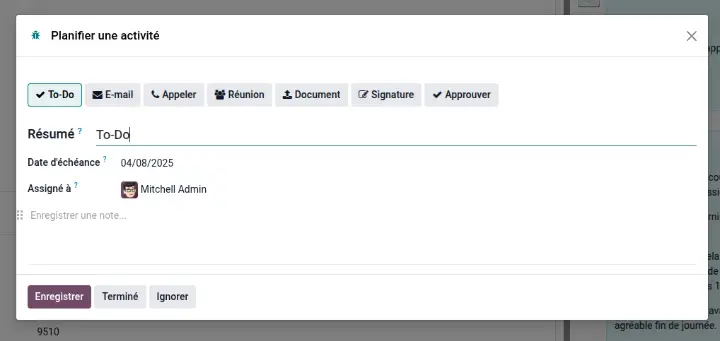
From an opportunity:
- Cliquez sur Activité dans la zone d'échanges, sous la fiche.
- Choisissez le type : appel, e-mail, rendez-vous.
- Fixez la date et le responsable.
Track your activities from the pipeline
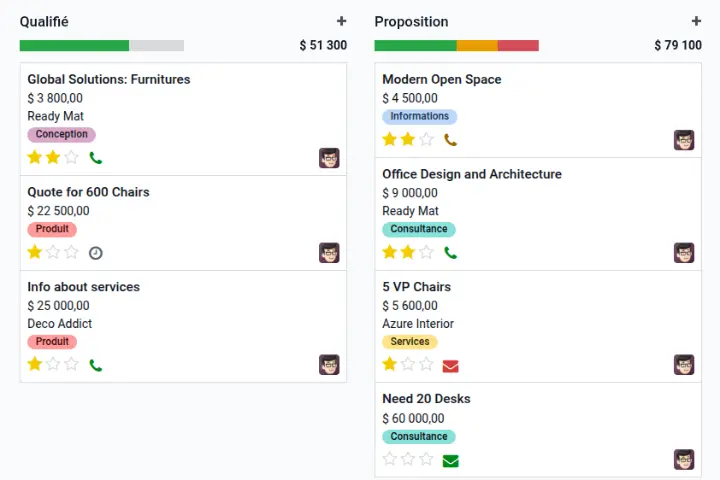
Une pastille de couleur apparaît sur chaque carte :
- rouge : activité en retard ;
- jaune : activité du jour ;
- green : upcoming activity.
In the morning, a filter on overdue activities provides the list of follow-ups to be done.
Automate your follow-ups
Odoo can automatically create an activity, for example, a call scheduled three days after sending a quote. Follow-ups no longer depend on anyone's memory.
3. Distinguish leads and opportunities
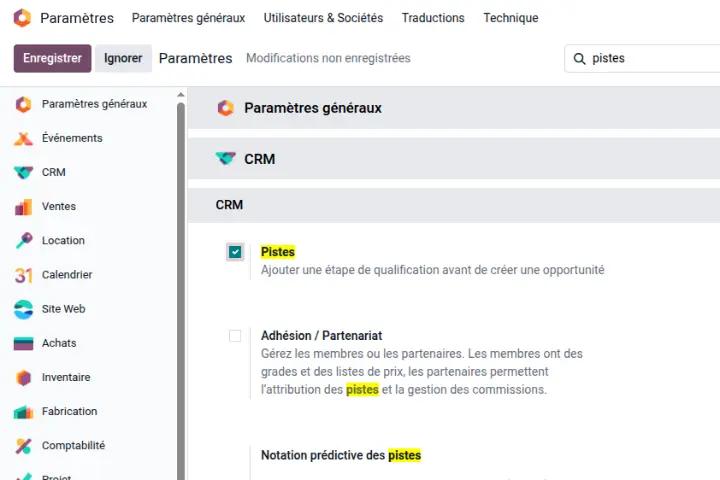
Not all your contacts are qualified potential customers. Odoo CRM separates leads, contacts to qualify, from opportunities that your salespeople work on.
Activate leads
- Open CRM ‣ Configuration ‣ Settings.
- Check Use leads, then save.
A Leads menu appears in the CRM.
Create a lead
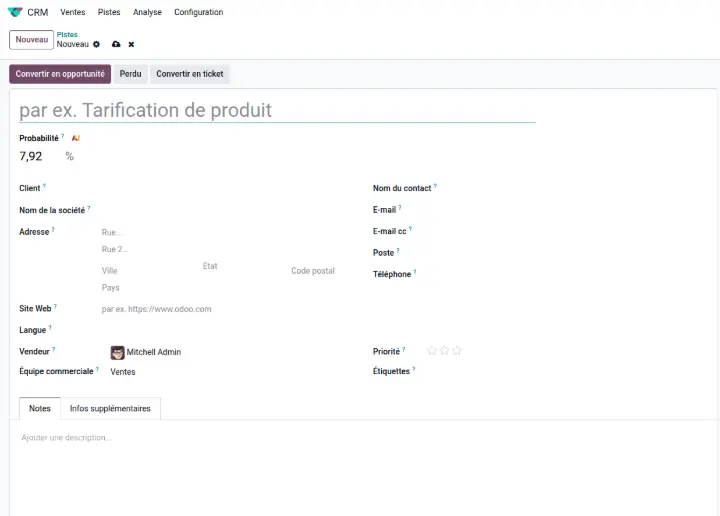
- Cliquez sur “Nouveau”.
- Enter the name, contact details, and source of the contact.
Leads also come in on their own: a contact form from the Odoo site, an email sent to a dedicated address, or a list imported after a trade show create leads in the CRM.
Convert a lead into an opportunity
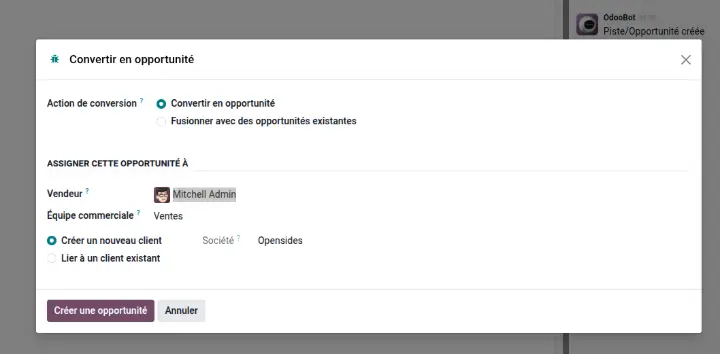
When the lead is qualified:
- Cliquez sur “Convertir en opportunité”.
- Associate it with an existing customer, or create one.
The opportunity joins the pipeline, with all the history of the lead.
4. Move from opportunity to quote
When the deal progresses, the quote is created from the opportunity. For this, the Sales application is needed.
Create a quote from the opportunity
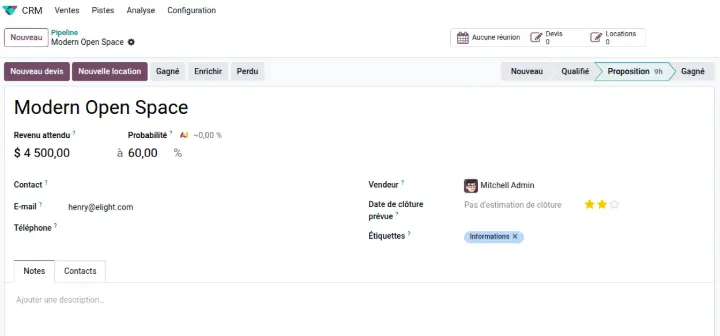
- Open the opportunity.
- Cliquez sur “Nouveau devis”.
The quote takes the client and remains linked to the opportunity. Sent by email, it can be signed and paid online from the client portal.
Follow the deal until signature
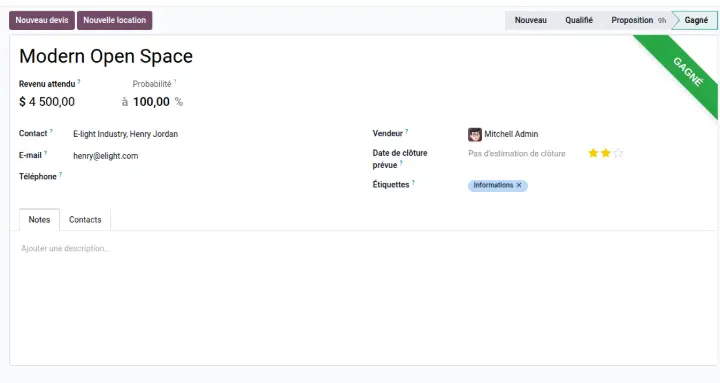
- Once the quote is confirmed, the order appears on the opportunity.
- Click on Won to close the deal.
- If the sale fails, mark it as Lost and indicate the reason: it is archived, and the reasons for loss feed your analyses.
The quote becomes an order, delivery, then invoice in the same database, without re-entry.
5. Organize your sales teams
Sales teams group sellers by sector, by range, or by region, each with its pipeline and objectives.
Create your teams
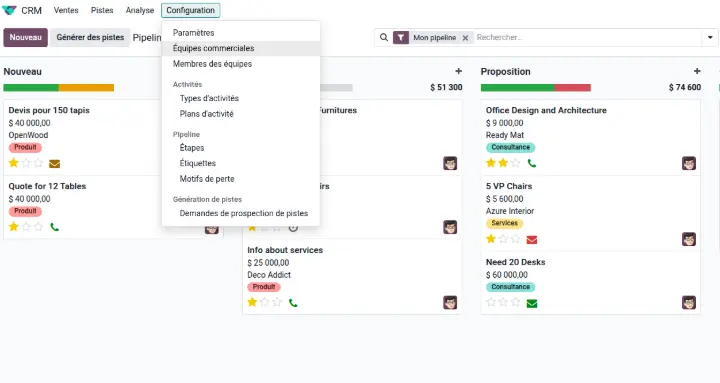
- Open CRM ‣ Configuration ‣ Sales Teams.
- Créez vos équipes (par secteur, produit ou région).
- Add the relevant salespeople.
Track the performance of each team
The dashboard of each team displays:
- the number of opportunities created;
- the conversion rate;
- the signed revenue;
- the results by salesperson.
6. Analyze your opportunities and sales
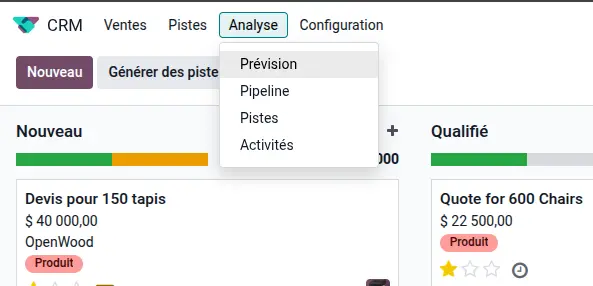
CRM reports can be filtered by period, by salesperson, by product, or by lead source. Four indicators to track each month:
- the number of opportunities created;
- the average amount per opportunity;
- the conversion rate of leads into customers;
- the average signing delay.
The forecast view additionally shows the expected revenue month by month, based on the amounts and probabilities of each opportunity.
7. Going further: scoring, lead generation, and Odoo 20
- Predictive scoring calculates the probability of signing each opportunity based on your sales history.
- Lead generation and enrichment complete the records with the company's public information. These services consume credits.
- Attribution rules automatically distribute new leads among salespeople.
- Odoo 20 telephony integrates with the CRM: purchasing numbers, recording and transcribing calls, linked to the opportunity.
- Odoo 20 AI agents create and modify opportunities or activities within your rights, with validation for sensitive actions.
Odoo CRM or another CRM?
An independent CRM like HubSpot goes further in marketing automation. Odoo CRM is essential when the sale extends to order, delivery, and invoicing, because everything remains in the same database. The complete comparison, with prices, is in our article "Odoo or HubSpot: which CRM for an SME?".
Frequently asked questions about Odoo CRM
Is Odoo CRM free?
Yes, if it is the only application in your base: the offer "One Free App" provides it without user limits, on Odoo Online. Adding another application, like Sales, switches to the subscription.
How much does Odoo CRM cost?
With all applications, €19.90 excluding tax per user per month the first year on the Standard plan, then €24.90, billed annually.
What is the difference between a lead and an opportunity?
A lead is a contact to qualify. An opportunity is a qualified deal, with an amount and a probability, that the salesperson advances in the pipeline.
Can we use Odoo CRM without the other applications?
Yes. The CRM works alone. Quotes require the Sales application, and campaigns require the Email Marketing application.
What changes in Odoo CRM with Odoo 20?
Integrated telephony, with call recording and transcription, and AI agents, who create and update opportunities and activities.
Setting up Odoo CRM in your SME
A useful CRM reflects your way of selling: your steps, your lead sources, your teams. Start with the pipeline and activities, then add leads, quotes, and automations.
At Nuprod, Odoo Silver Partner integrator in Gironde, we configure Odoo's CRM with your sales teams, and connect it to sales, billing, and your site.
To train your salespeople, Nuformations offers dedicated training for the CRM.
Talk about your project with an expert →